Quick Start
You will need:
-
A server with SSH (Linux or macOS).
-
An API key from Claude, OpenAI, or any compatible provider or a self-hosted endpoint.
-
A client device — iOS, MacOS, or Linux desktop.
Get the app




SSH Setup (easy mode)
- Click Connect via SSH -> Automated Pairing -> Begin Pairing.
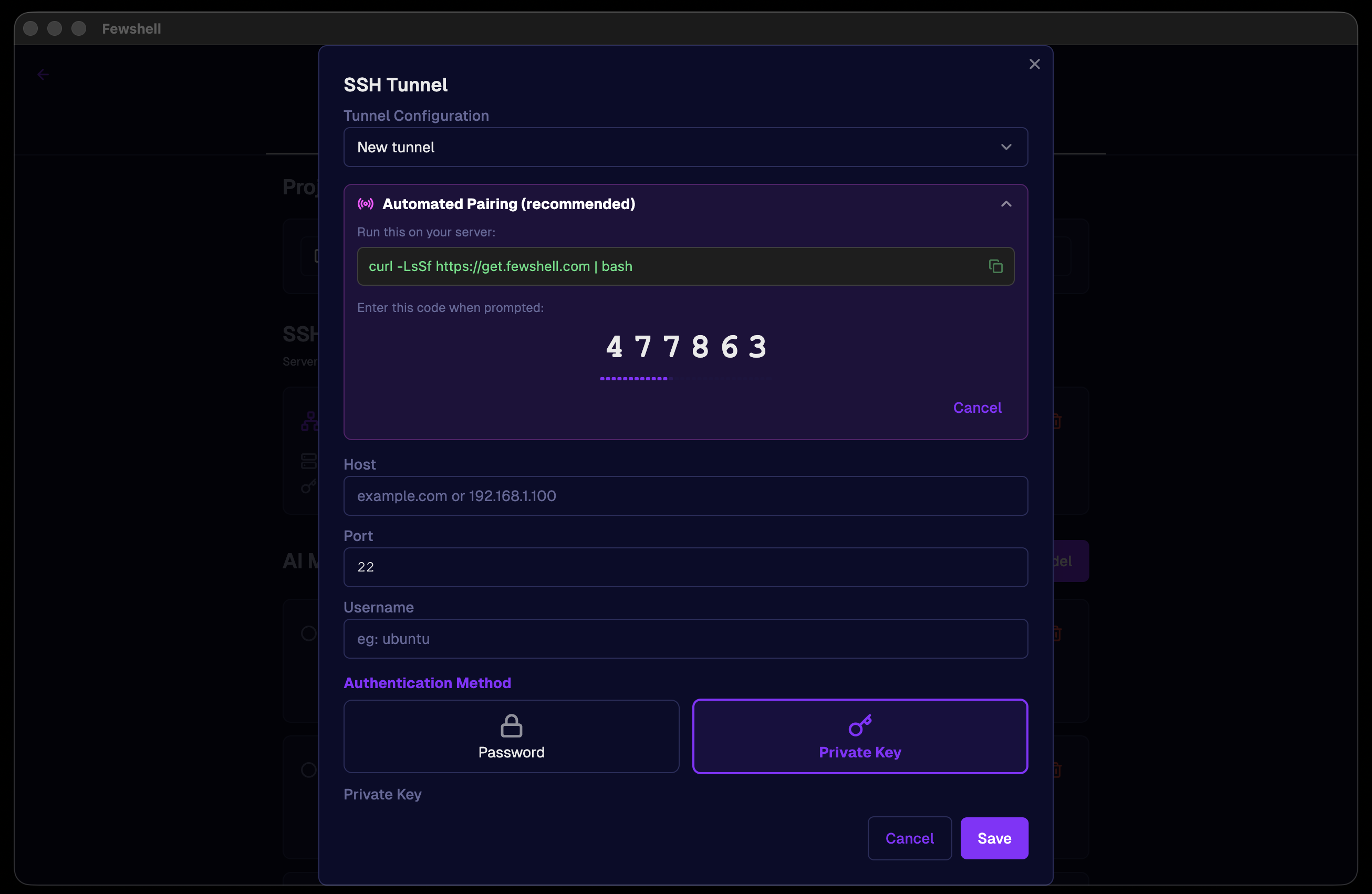
- On your server, run:
curl -LsSf https://get.fewshell.com | bashEnter the 6-digit code.
- Verify the information. Use the Test Connection button, if all works, hit save.
NOTE: If you are on a LAN, behind a NAT or VPN, you may need to update the IP address in the dialog.
How it works:
- The client generates a public-private SSH key pair.
- The public key is pulled by the installation+pairing script using the one-time 6 digit code. (We use a simple service to relay your public key.)
- Your new public key is added to ~/.ssh/authorized_keys on your server. Private key is kept on the keychain on the client device.
If you prefer not using our relay, you can manually generate the key pair and paste the private key into the SSH tunnel dialog on the app.
Adding LLM configuration
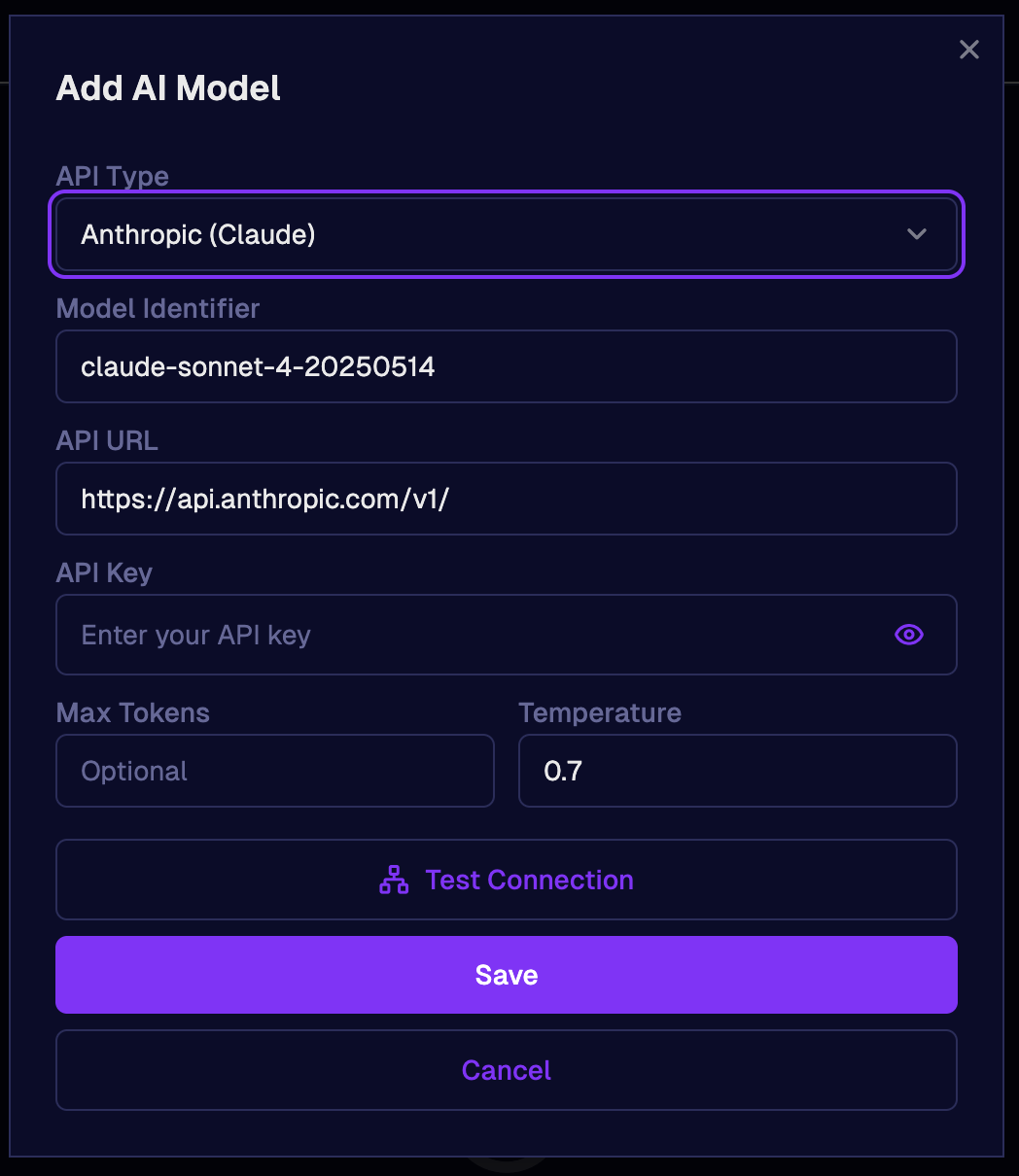
- Tap on the upper-left menu icon. Go to Settings -> Add Model
- Configure the settings, test until works, save.
Example Workflow
> Check disk usage on all serversFewshell will suggest and execute the appropriate commands, presenting results in a readable format.
Next Steps
- Learn about Configuration to customize your setup.
- Explore Secrets Management to securely manage credentials.